



Turn your shell history into a searchable command palette
Stop googling commands you already used.
curl -fsSL https://github.com/capydev42/ctrlr/releases/latest/download/install.sh -o install.sh && chmod +x install.sh && ./install.shThe script asks where to install, downloads the binary for your platform and verifies it against the release checksums.
Windows, in PowerShell:
irm https://github.com/capydev42/ctrlr/releases/latest/download/install.ps1 | iexVerifies the download against the release checksums, then adds itself to your
user PATH — which applies to new shells, not the one you ran it in.
Homebrew (macOS and Linux):
brew install capydev42/ctrlr/ctrlrCargo — builds from source, needs Rust 1.88 or newer and a C compiler:
cargo install ctrlrOther ways to install
A specific version:
curl -fsSL https://github.com/capydev42/ctrlr/releases/download/v0.11.4/install.sh -o install.sh && chmod +x install.sh && ./install.shA fixed directory, no prompt:
INSTALL_DIR=/usr/local/bin ./install.shFrom a release archive: download from the releases page, then
tar -xzf ctrlr-x86_64-unknown-linux-gnu.tar.gz
mv ctrlr ~/.local/bin/   # or /usr/local/bin/
From source (needs Rust 1.88 or newer):
git clone https://github.com/capydev42/ctrlr.git
cd ctrlr
cargo build --release
mv target/release/ctrlr ~/.local/bin/Open the command palette:
ctrlrType to search, Enter to put the command on your prompt line. ? shows every
shortcut.
Then bind it to Ctrl+R, replacing your shell's own reverse search:
ctrlr initRestart your shell and Ctrl+R opens ctrlr. The same integration is what lets
ctrlr know where your commands ran — see How it works.
ctrlr also offers to install it for you the first time you run it, and backs your
config up to <config>.ctrlr.bak before touching it.
Works with bash, zsh and fish on Linux and macOS, and with PowerShell on Windows. PowerShell Core on Linux and macOS works too.
Git Bash and MSYS on Windows are not supported: ctrlr is a native Windows
process there while the shell thinks in /c/... paths, so the two never agree
on a directory.
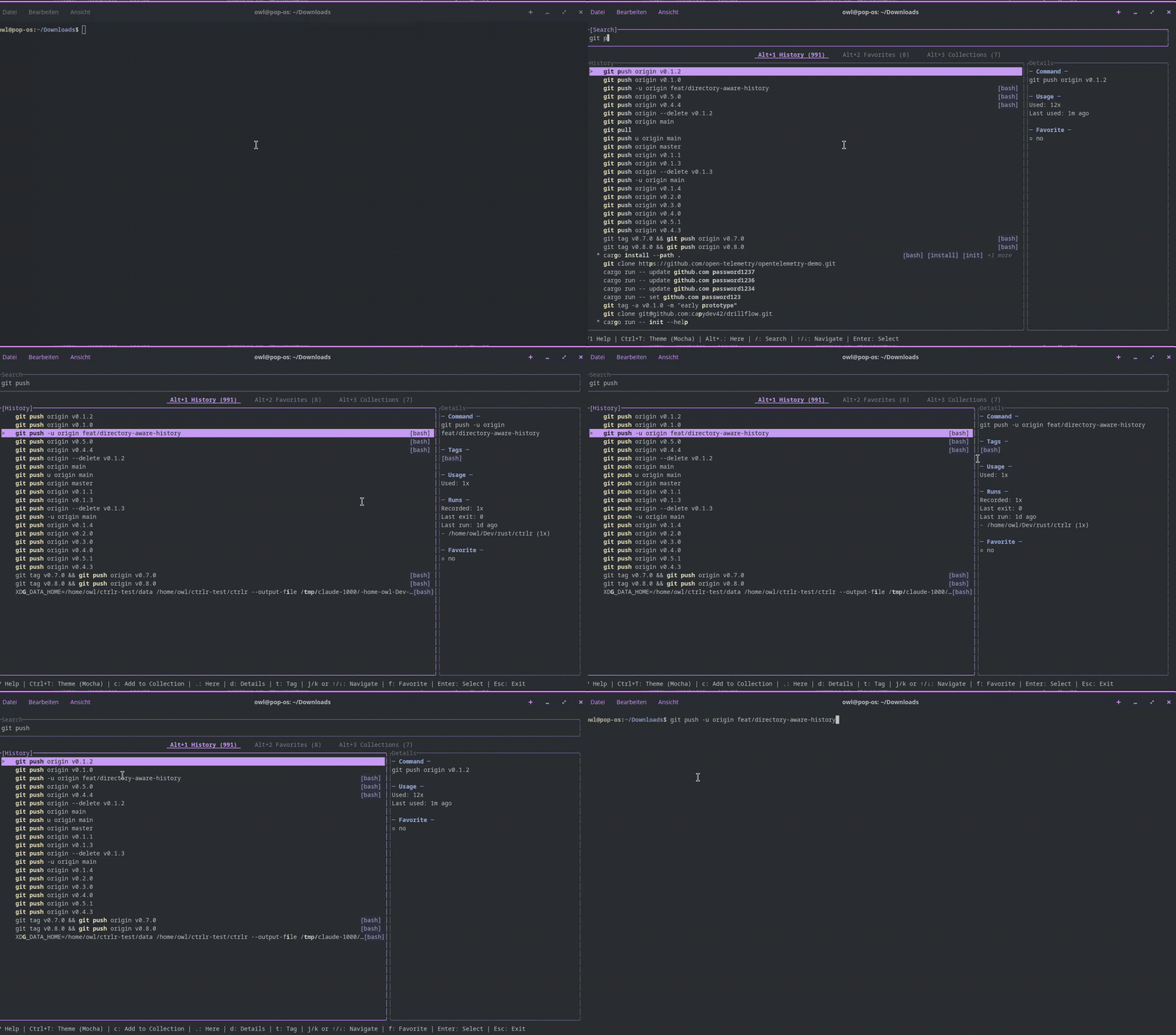
Search that knows what you meant
- Fuzzy search over your whole history —
gp ofindsgit push origin main - Tags are searched too, so a command you tagged
deployshows up underdeploy - Results are ranked, not just filtered: favorites first, then commands you have run in this directory, then recent ones, then frequent ones
Directory-aware history
- ctrlr records which directory each command ran in, and how it exited
.scopes the list to the current directory — the rest of your history steps aside while you work in a repo- The details pane shows how often a command ran, how often it ran here, its last exit code, and the directories it runs in most
Organize what you keep
ffavorites a command,ttags it,cputs it in a collection- Collections are named groups you create, rename and delete from the TUI (
3) - Commands added to a collection stick around even after they age out of your shell history
Made to live in
- 4 Catppuccin flavors (Latte, Frappé, Macchiato, Mocha) with a live-preview
picker on
Ctrl+T, remembered across launches - Panes resize with
</>or by dragging their border, and the width is remembered;dhides the details pane entirely - Full mouse support — click, double-click to run, right-click for a context menu, wheel to scroll
- Keyboard-first everywhere; vim keys where you expect them
Yours to keep
- Everything is local SQLite — no account, no network, no telemetry
- Import and export as JSON from the CLI or from the TUI (
Ctrl+E/Ctrl+O), with a preview before anything is written
ctrlr never executes anything itself. It reads your shell's history file, shows
you a picker, and hands the command you chose back to the shell, which puts it on
your prompt line. Nothing runs until you press Enter yourself. That holds for
edited commands too. Ctrl+x opens the selected command in $VISUAL /
$EDITOR and puts whatever you save on the prompt line. e instead opens a
one-line editor inside ctrlr, and Ctrl+x from there is the same detour through
$EDITOR, coming back to the line so you can look before you commit. Either
way, nothing runs on its own.
An edited command is not written to ctrlr's database. The original keeps its favorites, tags and run count, because the original is not what ran. Your edited version shows up in the list on the next launch, the same way every other command does — once your shell has actually run it.
Metadata — favorites, tags, collections, run counts — lives in a local SQLite database. Your history file stays the source of truth for the command text.
Where commands ran. No shell writes the working directory into its history
file, so it cannot be recovered after the fact. The integration installed by
ctrlr init appends one line per command to runs.log in ctrlr's data
directory (see below) using a shell builtin — no process is spawned per prompt — and ctrlr drains that
log on launch. This only covers commands run after the integration is
installed; existing history has no directories attached to it.
On zsh and fish the directory recorded is the one the command was typed in. On
bash the same holds when bash-preexec
is loaded — starship and atuin both bring it. Without it, ctrlr falls back to
logging at prompt time, so a cd is recorded against the directory it moved to.
PowerShell is exact through PSReadLine's AddToHistoryHandler, which runs
before the command does. Very old PSReadLine versions (1.x, shipped with the
original Windows 10) have no such hook and fall back to prompt time, the same
way bash does. Commands PSReadLine judges to hold a secret are kept out of its
history file, and ctrlr does not log those either.
If ctrlr tells you the installed integration is outdated, re-run ctrlr init:
the old block still binds Ctrl+R, but features it has no hooks for stay
silently empty.
Press ? (or F1) inside ctrlr for a searchable version of this table.
| Key | Action |
|---|---|
j / ↓ |
Move down |
k / ↑ |
Move up |
Ctrl+d / PageDown |
Page down (~half a screen) |
Ctrl+u / PageUp |
Page up (~half a screen) |
gg |
Jump to the top |
G |
Jump to the bottom |
| Key | Action |
|---|---|
Enter |
Put the selected command on the prompt line |
e |
Edit the command before running it |
Ctrl+x |
Open the command in $VISUAL / $EDITOR and run what you save |
f |
Toggle favorite |
y |
Copy to clipboard |
t |
Edit tags |
c |
Add to a collection |
d |
Show / hide the details pane |
/ |
Focus the search bar |
Ctrl+u |
Clear the search (when the search bar has focus) |
Ctrl+t |
Theme picker |
Ctrl+e |
Export popup |
Ctrl+o |
Import popup |
? / F1 |
Help |
Ctrl+g |
Rebind keys |
Esc / Ctrl+C |
Clear / close / exit |
Press Ctrl+G. The list shows every action with the keys that reach it; type
to filter, then on a row:
| Key | Does |
|---|---|
Enter |
Replace the keys with the one you press next |
Ctrl+a |
Add another key, keeping the ones it has |
Ctrl+d |
Remove a key — press the one you want gone |
Ctrl+r |
Put every binding back to its default |
Replace, add and remove all name the key by having you press it, so an action holding several keys needs no extra picking. A key another action already owns is not taken silently: the first press says what it would displace, the second confirms.
Changes take effect at once and are written to ~/.config/ctrlr/config.toml
when you close the popup — the file and its directory are created for you.
Two things the popup cannot do. Esc cancels a recording, so Esc itself has
to be rebound in the file. Two-key sequences like g g are shown but marked
(file only), because recording reads a single press. If ctrlr overwrites a
config you had written by hand, your version is kept as
config.toml.ctrlr.bak.
Or edit the file directly. Start from the defaults:
mkdir -p ~/.config/ctrlr
ctrlr config --print > ~/.config/ctrlr/config.toml[keys.history]
toggle_favorite = "v"
copy_to_clipboard = ["y", "ctrl+y"] # an action can hold several keys
[keys.global]
go_to_top = "g g" # a space makes a two-key sequence
show_help = [] # an empty list unbindsListing an action replaces its default keys, so you can drop one you dislike.
Anything you leave out keeps its default. Contexts are global, search,
history, collections_list, collection_items, help, tag_input,
collection_input, import_export, theme_popup, context_menu,
integration_popup, edit_command and keybind_popup; ctrlr config --print
lists them all with every action name.
An action may hold as many keys as you like — give it a list. The first one is what the footer and the help popup advertise, so put the one you think of as primary first.
Modifiers are ctrl, alt and shift. Named keys are enter, esc, tab,
space, backspace, delete, insert, home, end, pageup, pagedown,
up, down, left, right and f1–f12. Anything else one character long
is that character, and case matters — g and G are different keys.
One thing to know: a plain character always types when the search bar has
focus. That is why d and ? do nothing special there, and why a letter you
bind only fires from the other panes. Use a modifier if you want it everywhere.
A key that another action already owns in the same context is taken from it. A line ctrlr cannot read — a bad key name, an action that does not exist, broken TOML — keeps its default and is listed under Config at the top of the help popup. ctrlr always starts.
| Key | Action |
|---|---|
1 / 2 / 3 |
History / Favorites / Collections |
. |
Scope the list to the current directory |
Alt+1 Alt+2 Alt+3 Alt+. |
The same, from any pane |
| Key | Action |
|---|---|
Tab |
Cycle panes |
Ctrl+h/j/k/l |
Focus the pane left / below / above / right |
< / > |
Narrow / widen the details pane, or the collections pane when it has focus |
Alt+< / Alt+> |
The same, from any pane |
| Key | Action |
|---|---|
n |
New collection |
e |
Rename collection |
d |
Delete collection |
a |
Search commands to add |
r |
Remove command from collection |
1,2,3,.,<,>and?type into the search bar when it has focus — that is what theAlt+variants are for.
| Input | Action |
|---|---|
| Click | Select a row, switch tab, focus the search bar |
| Double-click | Run the command |
| Right-click a command | Context menu: Run, Copy, Favorite, Tag, Add to / Remove from collection |
| Right-click the collections pane | Open, Rename, Delete, New collection |
| Drag a pane border | Resize it; drag past the minimum to hide the details pane |
| Wheel | Scroll the list under the pointer |
| Click outside a popup | Close it |
Shift + drag |
Your terminal's own text selection |
Both context menus are keyboard-driven too (j / k, Enter, Esc). ctrlr
holds the mouse for as long as it runs, which is why selecting text needs
Shift held.
From inside the TUI: Ctrl+E opens the export popup, Ctrl+O the import popup —
type a path, and import shows you a preview (new commands, new collections,
duplicates) before writing anything.
From the CLI:
ctrlr export                        # print JSON to stdout
ctrlr export backup.json            # write to a file

ctrlr import backup.json            # merge (default)
ctrlr import backup.json --dry-run  # preview, change nothing
ctrlr import backup.json --replace # wipe everything first (asks y/N)- Merge adds new commands, skips duplicates, and merges tags and collections
- Replace deletes all existing data before importing
- Dry run prints what would happen and exits
The format is versioned JSON, so an export from an older ctrlr still imports.
Local SQLite. Command metadata (favorites, use counts), tags, collections, run records and your theme.
- Linux:
~/.local/share/ctrlr/ctrlr.db - macOS:
~/Library/Application Support/ctrlr/ctrlr.db - Windows:
%LOCALAPPDATA%\ctrlr\ctrlr.db— Local, not Roaming, so a domain profile does not copy your history to a network share at logoff
The run log lives next to it as runs.log. If the database cannot be opened,
ctrlr still runs — read-only, straight off your shell history.
Default shell history search is linear, hard to navigate, and impossible to organize. You either remember the command or you go and google it again.
ctrlr gives you fuzzy search over everything you have ever run, ranked by what you actually use and where you are standing, plus somewhere to put the commands worth keeping.
I wasted a lot of time re-googling commands I had already used.
- Fuzzy search
- Favorites & tags
- Collections
- Import/export (CLI)
- Import/export (TUI)
- Better ranking (recency + frequency)
- Directory-aware history
- Mouse support & resizable panes
- Improved collections UX
- Richer command preview
- Vim-style navigation
- Themes with live preview
- Edit a command before running it
- Rebindable keys —
config.tomland an in-TUI editor (Ctrl+G) - Windows and PowerShell support
- Git Bash and MSYS on Windows
Ideas, feedback, and UX suggestions are very welcome.
- ratatui – TUI framework
- crossterm – terminal I/O
- fuzzy-matcher – fuzzy search
- rusqlite – SQLite storage
- arboard – clipboard access
Colors from Catppuccin.