
A file manager for Hyprland.
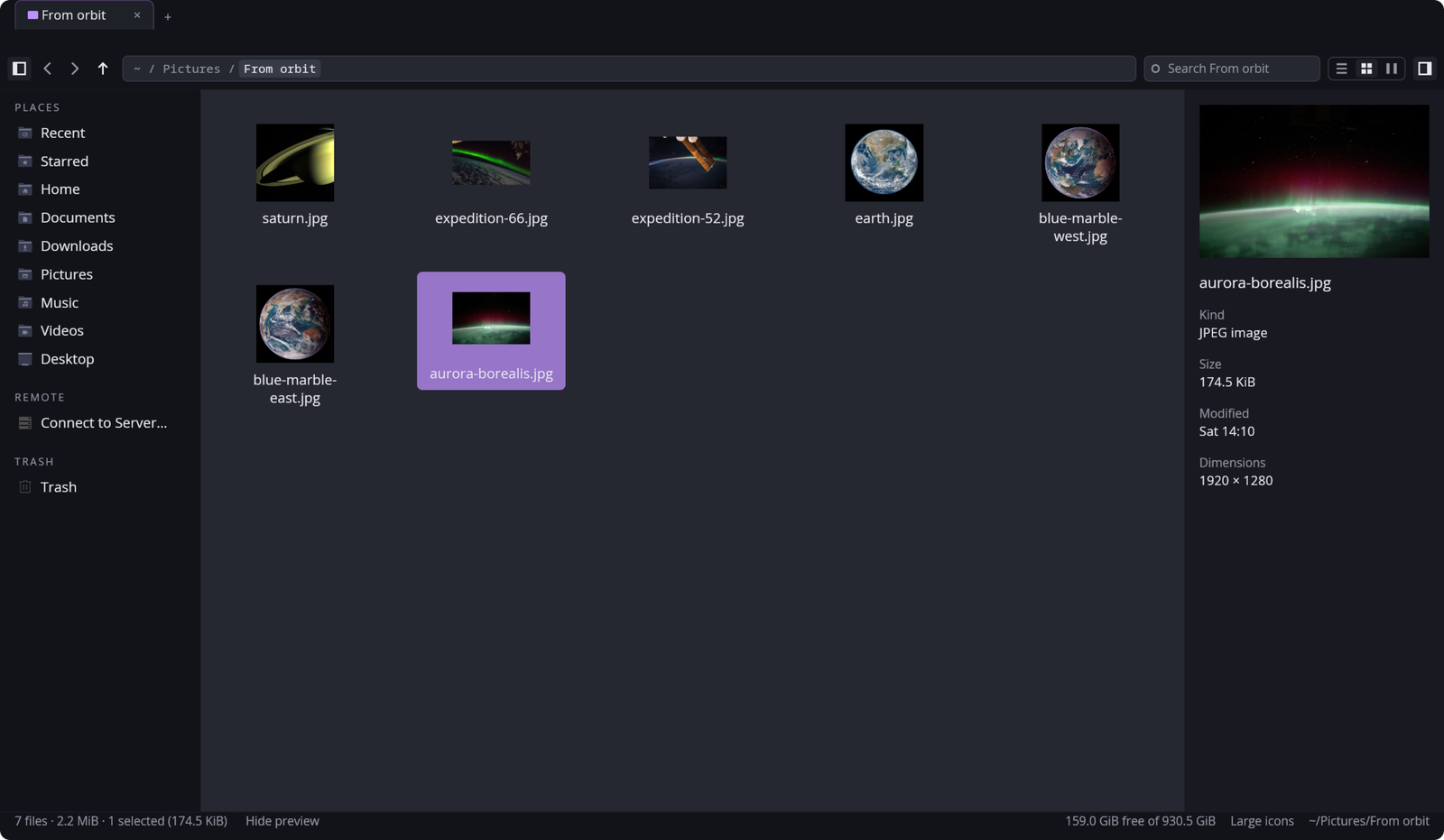
Tabs in the titlebar, a sidebar of places and pins, list, grid and column views,
a path bar that understands ~/do/pr/hyf as ~/Documents/Projects/hyprforge,
a Ctrl+K palette of every command,
a search that understands filters (ext:rs, size:>10M, modified:<7d)
as chips, reads what files say (content:TODO, with no index — bounded,
and counting every file it did not read), looks below the folder or
across home (Ctrl+Shift+F moves between them), and saves to the
sidebar, multi-select and history — and the freedesktop trash done
properly, including the part that bites: a file cannot be renamed across
filesystems, so a file on another one needs a trash directory of its own,
which is not an exotic case on a btrfs laptop where subvolumes report
different device numbers.
It also browses archives as folders. ~/Downloads/x.tar.xz/bin is a
path this browser navigates to — zip, tar over gzip/bzip2/xz/zstd, and
7z, all pure Rust so a machine with no p7zip still opens a .7z. They
can be edited in place too: add, rename and delete, each rewrite going
to a temporary file beside the original and renamed over it, so an
interrupted edit never leaves a truncated archive.
A preview pane beside the listing shows the selected file — a picture, the first lines of a text file, a folder's or an archive's contents, a PDF's first page, a video's frame or a song's cover — and the grid draws real thumbnails of pictures, SVGs, PDFs, videos, 3D models and anything an installed thumbnailer reads (AVIF, HEIF and JPEG XL through glycin), sized for the zoom and the screen, the costly ones kept in the freedesktop thumbnail cache every other file manager and viewer already shares. Files can be copied and pasted with other applications, and dragged out of the window into them — members of an archive too, unpacked while the drag is under way and handed over once they are on disk. Dragged between folders of the window itself, they move (Ctrl copies) — picked up as a card under the pointer, onto a folder, a sidebar place, a folder in the path bar or a tab — and a folder the drag rests on fills as it gets ready, then opens so the drag can go on deeper.
Messages — "Moved 3 items", a copy that failed — go to the desktop's notifications when a notification daemon is running, the undo notice with its Undo and History buttons; with none, they are a line at the bottom of the window as before.
Zoom with Ctrl+scroll over the listing, or Ctrl+= / Ctrl+- / Ctrl+0, the way Explorer does it: one ladder from Compact details through Details to Small, Medium, Large and Extra large icons, crossing from the list to the grid on the way, with the status bar naming where you are. The icon sizes grow the icons and leave names at the window's size, as Explorer's do; a long name ends in "…" and the selected one is shown whole. The toolbar's view buttons jump straight to the most-used ones: Details, Large icons and Columns.
Quick Look (Space) shows the focused entry large, over the window — the same readers as the preview pane, with the picture decoded for the card's size on your output's scale. A video plays, with Media's bar under it, a 3D model turns under a drag, and an animated GIF moves — the same panes Media's viewer draws. (The preview pane beside the list shows a GIF's first frame.) The arrows move through the folder with it open, Enter opens the file, and Space or Escape puts it away. A Space typed between two words of a search still types a space. It works in the open/save dialog too.
Selecting by dragging a box across empty space — beside a short list, or between and below the grid's icons — selects everything it touches, scrolling the listing when it reaches an edge; Ctrl or Shift adds the box to what was already selected, and a click on empty space clears it. Typing at a folder searches it, as it always has; set Typing in a folder to Jump to name in Preferences and typed letters move to the first name they begin instead, the way Explorer, Finder and Dolphin do, with Ctrl+F (in either mode) putting the keyboard in the search field. The status bar says how much free space is left on the folder's disk, and refreshes after a paste or a delete.
Open as administrator — a folder you may not read offers it. One
password (through polkit) and the tab browses and changes it as root,
under a banner saying so: copying in, moving, renaming, new folders and
deleting, which there skips the Trash and always asks first. It is a
separate small helper, hyprforge-files-admin, that does only those
things; the window itself never runs as root.
One window — "Show in folder" from a browser, or opening a folder with Files from anywhere, opens a tab in the Files window you used last and brings it forward, rather than a new window each time (Preferences can change that). A folder's menu also has Open in New Window, and Open in New Window on Workspace… for putting one on another Hyprland workspace.
Previous Versions — on a machine where snapper keeps snapshots of your home, "Previous Versions…" on a file's menu lists the older copies there are (one per change, not one per snapshot), to open or to restore beside the current one. Settings → Set up turns on reading them, once, with your password.
Tags — "Tags…" on a file's menu puts words on it, kept on the file
itself the way Dolphin keeps them, so they survive renames, moves and
copies and the two apps see each other's. Each tag is a row under Tags
in the sidebar, and tag:work finds them in a search.
Undo shows what it is holding: the notice after an operation has a History button, and so do the palette and the empty-space menu ("Undo History"), listing everything Ctrl+Z can still take back, newest first. Only the newest can be undone from there — each undo checks the folder is as that record left it, and taking an older one first would check against a state the newer one has since changed.
Redo (Ctrl+Shift+Z or Ctrl+Y) does again what undo took back, with the same check first. Undoing a copy, an extraction or a new archive moved it to the Trash, so redoing one brings that same item back out. Only an undo that went through completely can be redone, and doing anything new forgets the redos, as in every other program.
Drives and servers are in the sidebar. Devices lists removable
drives and disk images, mounted or not: a click on one that is not
mounted mounts it — over UDisks2, with no root, polkit deciding — and
goes there, and the eject mark or its menu unmounts, ejects or powers it
off, saying in words why when it cannot (something still has a file
open on it; the system's policy said no). Plugging a stick in or pulling
it out shows at once. Remote lists the network shares that are mounted,
gvfs's and the kernel's, and Connect to Server mounts an smb://,
sftp:// or ftp:// address through gvfs, asking for a name and
password when the server wants one. UDisks2 not running, or gvfs not
installed, is said in the sidebar or the dialog rather than hidden.
Phones and cameras are in Devices too: a click opens one through
gvfs's MTP or gPhoto2 backend and the eject mark lets go of it. A
locked phone is asked to be unlocked rather than shown empty, and one
plugged in with no backend to read it is a row saying which package to
install (gvfs-mtp, gvfs-gphoto2). An encrypted drive opens with
its passphrase, and locks again when it is unmounted or ejected.
A folder on screen keeps itself up to date: a download finishing, a file saved from an editor or a build writing its output shows up without F5, the selection and the scroll position kept. A burst of changes — unpacking a tarball into the folder — is one re-read a quarter of a second after it goes quiet, not one per file. A network share cannot say when someone else changes it, so a folder on one is looked at again every few seconds while it is shown, and only then. The window reopens on last time's tabs, skipping any folder that has gone, unless it was started on a folder of its own. Both are switches in Preferences.
Split view is per tab: F3 puts a second listing beside the first, at the same folder, and F3 again closes the one you are not in. Each pane has its own path bar, history and selection; the left one keeps the sidebar and the toolbar, and the one with the keyboard has the accent across its top. A click chooses a pane, and so does Tab when no text field has it. Copy to Other Pane and Move to Other Pane, in the file and folder menus and the Ctrl+K palette, are the paste a Ctrl+V over there would make — conflicts asked, the queue showing it, Ctrl+Z taking it back — without touching the clipboard. Split tabs come back split when the window reopens on last time's tabs, and Preferences can open every new tab split.
Recent and Starred head the sidebar's Places. Recent is the
desktop's own list, ~/.local/share/recently-used.xbel — what was opened
lately by Files and by every GTK application and the portal — newest
first, with anything since deleted left out; a file Files opens is added
to it, with every other application's entries kept as they were written.
Star anything with Ctrl+Shift+D or from its menu; a star follows the
file through a rename or a move made in Files, and one whose file has
gone is said, with a way to clear it. Both show the way a search's
results do, with a Folder column and Show in Folder. Preferences hides
either row and clears what Files added to Recent — only that.
Copies, moves and archive work run in the background through a queue: a control in the tab strip shows overall progress, its popover lists each job with its rate and estimate and why a waiting one waits, and a queue view keeps the session's finished jobs, their failures, and a Retry wherever running the work again is safe — and Retry as administrator for what was refused for permission. Ctrl+Shift+Y opens the popover and Ctrl+Shift+J the queue view, and both are in the Ctrl+K palette.
Properties (Alt+Enter, or the bottom of any right-click menu) docks
in the preview pane's place: General, with a folder's size walked in the
background; Permissions, editable for a file you own; and Open with,
where any application for the type can be made its default. Preferences
(Ctrl+,) covers behaviour and every key binding — rebind, clear or reset,
with a key another command holds named before it is taken — and writes
files-config.toml one line at a time, so anything written there by
hand stays. Colours and fonts are the Settings app's.
Bulk rename is F2 with several things selected: find and replace
(optionally a regular expression), add text, number them in the order
the folder is sorted (Holiday {n:03}), or change their case — with the
extension left alone unless you ask. Every name is previewed before
anything happens, and a clash, an empty name or one that would hide the
file is flagged on its row and stops the rename. It happens all at once
or not at all: two names swapped go through a temporary one, nothing is
ever written over, and a failure halfway puts everything back and says
exactly where anything it could not put back now is. One Ctrl+Z undoes
the lot. Inside an archive it is a single rewrite.
Open Terminal Here is F4, or the folder and empty-space menus: your
terminal, in that folder — the one chosen in Preferences, else whatever
xdg-terminal-exec or $TERMINAL names, else the first of ghostty,
kitty, foot, alacritty, wezterm, konsole, gnome-terminal and xterm that
is installed. Your own commands go in the same menus and the Ctrl+K
palette, offered only on the file types you name, as [[action]] blocks
in files-config.toml or from Preferences' "Terminal & actions" page.
The selected files are added to the command as arguments of their own;
nothing is ever run through a shell.
It can also be every application's Open and Save dialog, through xdg-desktop-portal — the same browser, path bar and previews, not a smaller copy. See "The open/save dialog" below.
Part of Hyprforge, a suite of
native Hyprland desktop applications. It appears there as a
submodule at crates/hyprforge-files; this repository is where its code
lives, and pull requests here are welcome.
The browsing view is not in this crate. It lives in
hyprforge-files-core, because the portal's open/save dialog has to
render the same one — enforced by the type rather than by convention:
view() takes a private ViewModel with no mode field, so it cannot
branch on which host it is in.
What this crate owns is the window around it, and the things a dialog
deliberately does not have: launching what you double-click, file
operations, the transfers popover and queue view, the archive jobs, the system clipboard,
drag and drop with other applications, connecting to a server
(connect.rs), and administrator access — the third binary,
hyprforge-files-admin, which pkexec runs (admin.rs, and the window's
end in admin_client.rs and admin_jobs.rs). Reading what the listing,
the preview pane and the thumbnails show is host.rs, shared with the
dialog — the second binary here, hyprforge-files-portal — and so is
watching drives and shares (devices.rs): a stick can be opened, and
saved to, from a file chooser too, though not ejected from one. The
talking to UDisks2 and gvfs is hyprforge-volumes'. Quick Look's
requests are coalesced by quicklook.rs, so a held arrow key decodes
only the picture it stops on. Keeping the folders on screen up to date is
watch.rs, over inotify, and the tabs reopened at startup are
session.rs — both the window's alone. So are split tabs' panes: the
browser is told only whether there is another pane, and draws itself
bare (Chrome::Bare) when it is the second.
cargo install --path .
Arch users can build the hyprforge-files package from the monorepo's
packaging/arch instead, which also installs the desktop entry.
Nothing else in the suite is required. A missing appearance.toml is
first-run, not an error, and the app draws correctly themed on a machine
where the Settings app has never been installed.
pdftoppm (poppler) and ffmpeg are optional too: without them a PDF,
a video or a song previews as the details the listing already knows and
a sentence naming what to install, and a PDF or a video gets no
thumbnail.
So are UDisks2 and gvfs. Without UDisks2 the Devices section says it
isn't running; without gvfs (and gvfs-smb for Windows shares) the
Connect to Server dialog says what to install. Network shares mounted
some other way — an fstab line, sshfs — are listed either way. A phone
needs gvfs-mtp and a camera gvfs-gphoto2; without them, a plugged-in
one is listed with the package to install.
hyprforge-files-portal serves xdg-desktop-portal's
org.freedesktop.impl.portal.FileChooser. Each request starts one
dialog window, which answers and exits; an application that gives up on
its dialog takes the window with it. Each application's dialog opens
where it was last left, remembered in files-portal.toml beside Files'
own settings.
Installing it switches nothing. With Hyprforge Settings installed, its
Set up page (or hyprforge-settings --setup) can switch it on. It
adds the line below to your existing hyprland-portals.conf, keeps the
rest of the file, and removes only that line on undo. By hand, to make
it every application's dialog, put this in
~/.config/xdg-desktop-portal/hyprland-portals.conf:
[preferred]
default=hyprland;gtk
org.freedesktop.impl.portal.FileChooser=hyprforge
and run systemctl --user restart xdg-desktop-portal. Keep the
default= line: the portal reads only the first portals.conf it finds.
Removing the last line puts the previous dialog back.
The package installs the .portal descriptor where xdg-desktop-portal
looks for one (/usr/share/xdg-desktop-portal/portals, the only place
it does) and a D-Bus activation file, so the service starts when an
application asks and at no other time.
hyprforge-files [PATH…] [--select PATH…] [--properties PATH…]
Several paths open a tab each. --select opens each path's folder with
it selected — several in one folder are one tab — and --properties
does the same with Properties open. Paths may be file:// URIs.
hyprforge-files --dbus-service serves org.freedesktop.FileManager1,
which is what a browser's "Show in Folder" and an editor's "Reveal in
File Manager" call: ShowItems is --select, ShowFolders opens the
folders, ShowItemProperties is --properties. It is started by the
session bus when something asks and exits after five minutes idle.
./hyprforge --install claims the name in your own D-Bus services
directory, where it wins over another file manager's file in
/usr/share, and --uninstall gives it back. The Arch package installs
an activation file in /usr/share too. When another file manager has
one there as well, the bus picks one of them, and Settings → Set up's
"Show in folder" item writes the user's own file to settle it.
MIT. See LICENSE.